
How to Restore Etsy Listing Titles and Images from a Backup
Changed a listing title or removed a photo? See how Cayana Listing Protection helps you compare your listing with a saved backup and restore selected details.
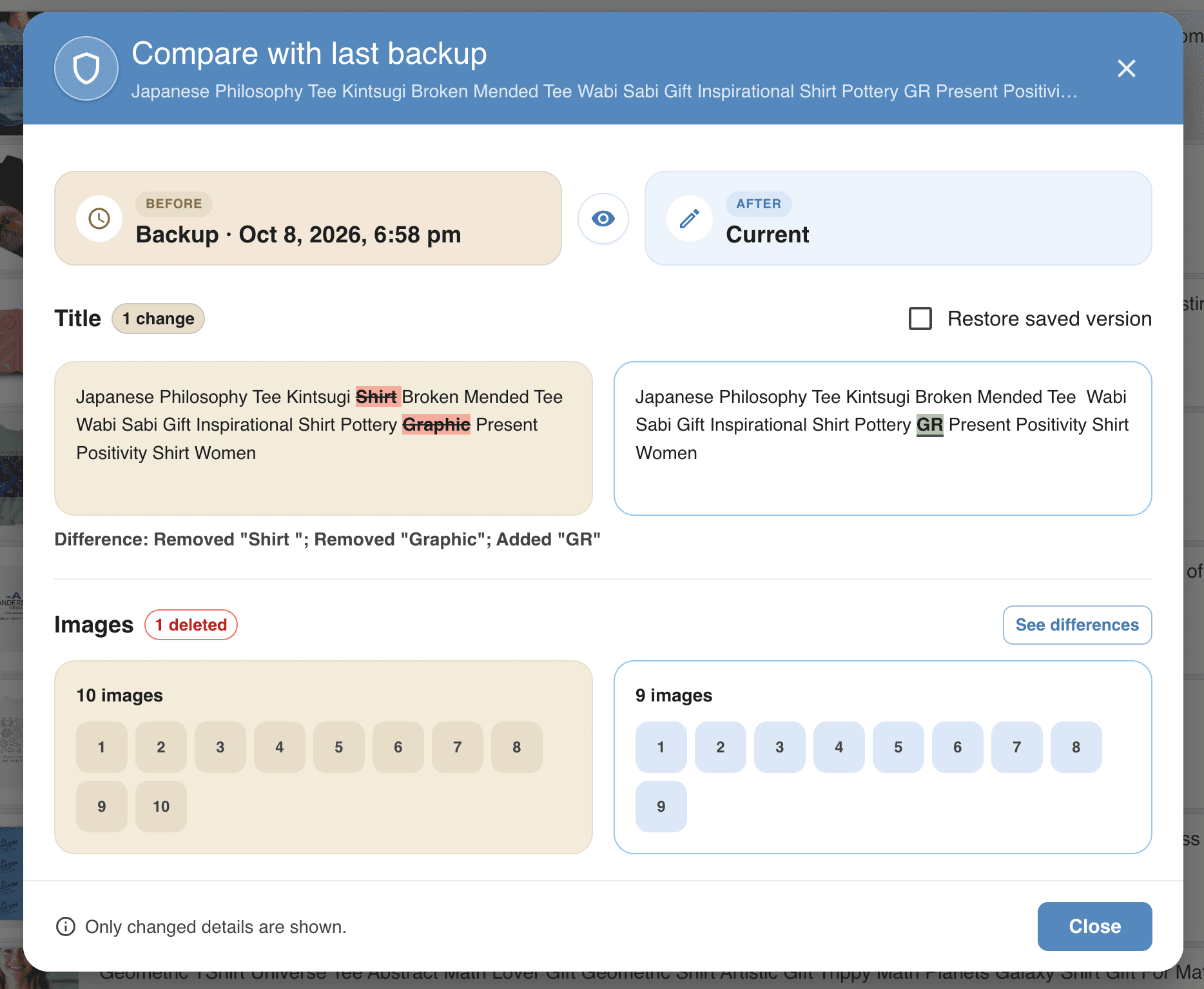
To restore an Etsy listing title or a removed image with Cayana, open Changes since backup, compare your current listing with its saved version, and choose the details you want to recover. You need an earlier backup containing the title or image you want to restore.
This guide shows recovery of details from an existing listing. It does not show recovery of an entire deleted Etsy listing.
Watch the 2-minute recovery demo
In this video, I change a listing title and remove a photo, then use Cayana Listing Protection to recover them from the backup.
Watch the recovery tutorial on YouTube.
Before you start: check your backup
A backup gives you a saved version to compare with your current listing. It must have been created before the unwanted change and must contain the information or image you want to recover. A new backup cannot bring back something that was already missing when it was saved.
1. Open Changes since backup
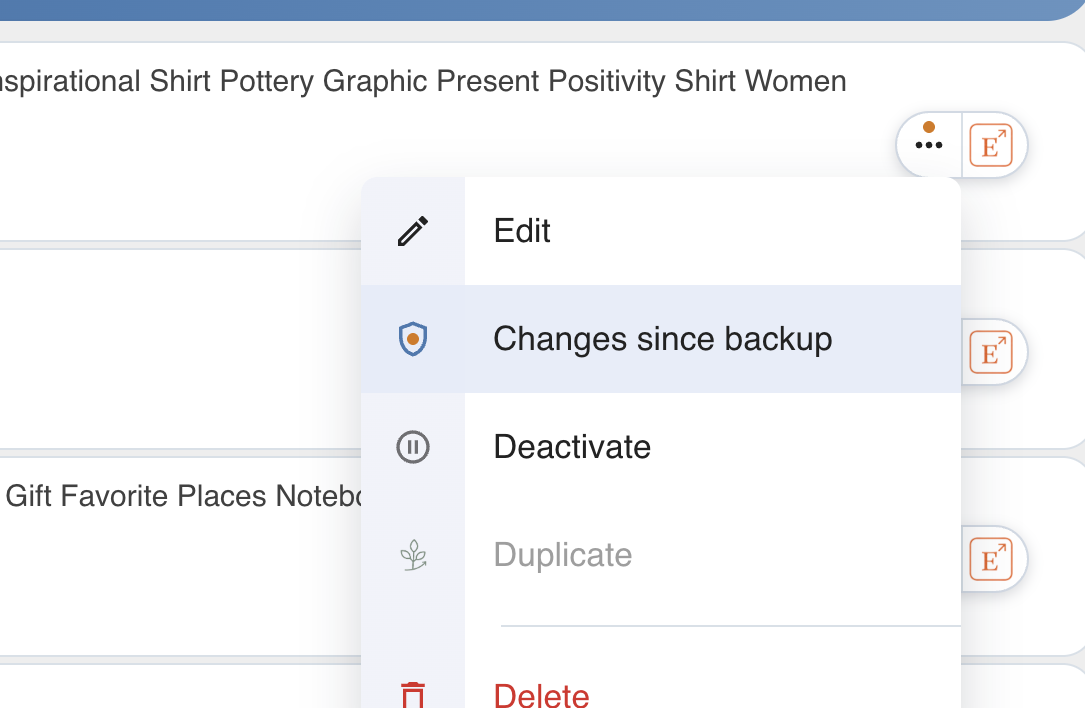
Find the listing in Cayana and open its three-dot menu. Choose Changes since backup to see how the current listing differs from the last backup.
2. Compare and restore the saved title
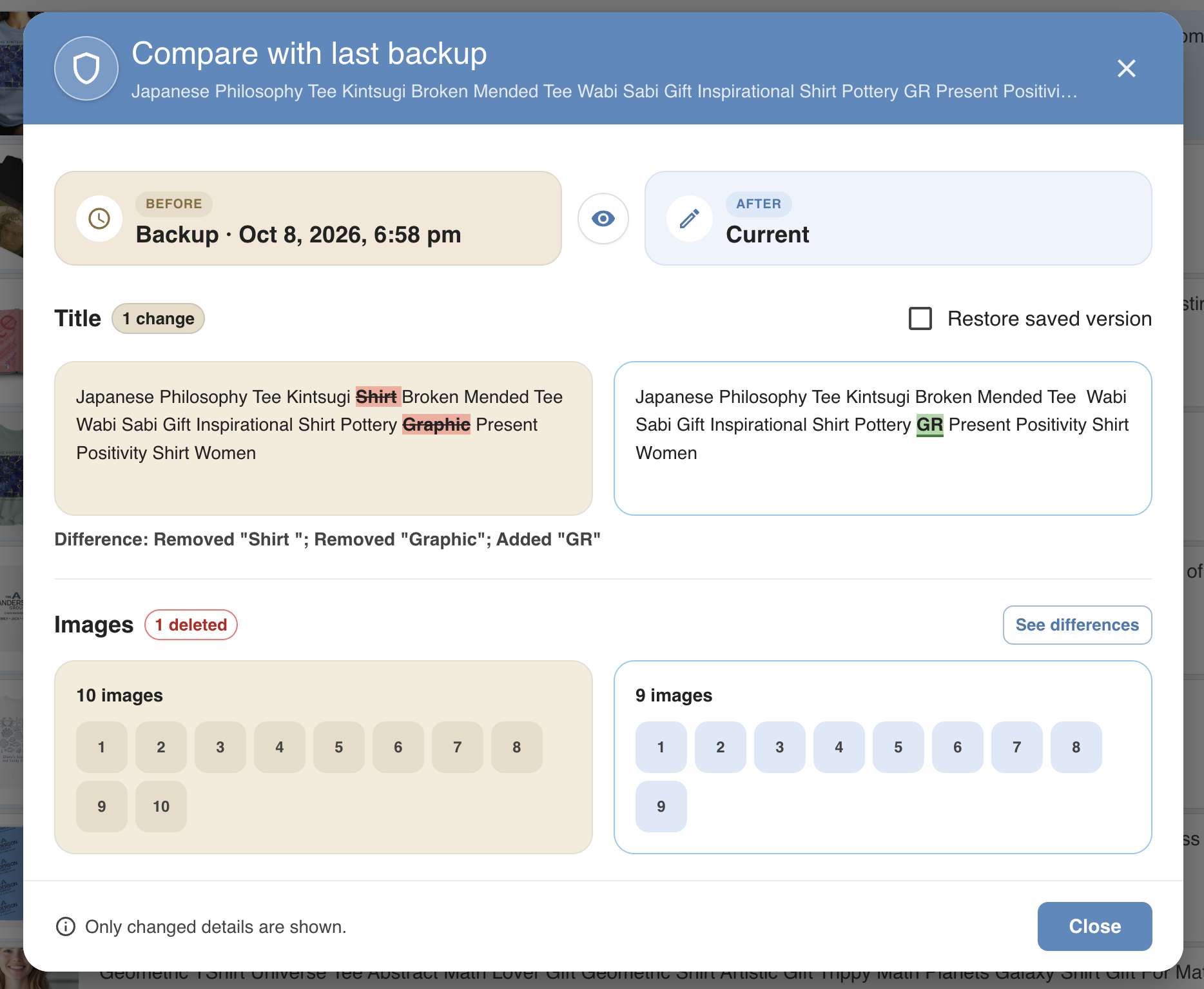
The comparison shows the Backup on the left and Current listing on the right. Highlighted words help you see what was removed or added.
If the saved title is the one you want:
- Select Restore saved version beside Title.
- Choose Restore selected….
- Review the confirmation, then choose Confirm restore.
Restoring replaces the selected details on your live Etsy listing with the saved version. Check your selection carefully before confirming.
3. Find and recover the removed image
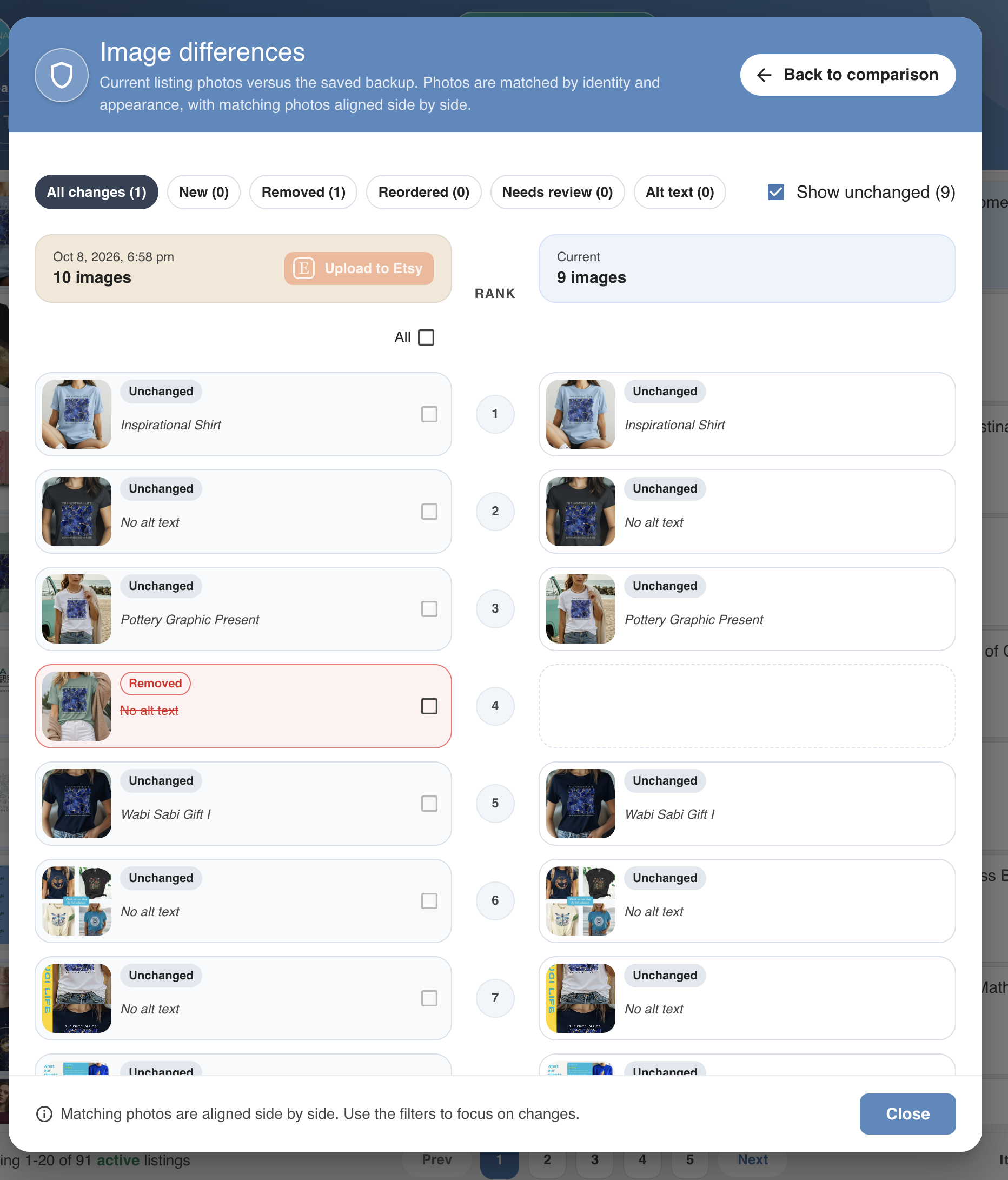
In the Images section, choose See differences. Cayana aligns matching photos side by side so you can spot the saved image that is missing from the current listing.
- Use the Removed filter to focus on missing photos.
- Select the saved photo you want to recover using its checkbox.
- Choose Upload to Etsy to add it back to the listing.
4. Review your listing on Etsy
After recovery finishes, open the listing on Etsy and check its title, photos and photo order. You can recover selected details without replacing every part of the listing.
Keep a way back before your next edit
Before changing titles or removing photos, save a backup that includes the details you may need again. Listing Protection helps you see what changed and recover supported saved details; it does not guarantee search rankings or sales.
Get your free shop analysis and first full shop backup, including images. Everyday listing-management tools include a 30-day free trial with no credit card required.
For more guidance, visit Help and Tutorials, or read how to bulk edit Etsy listings safely.
Related articles
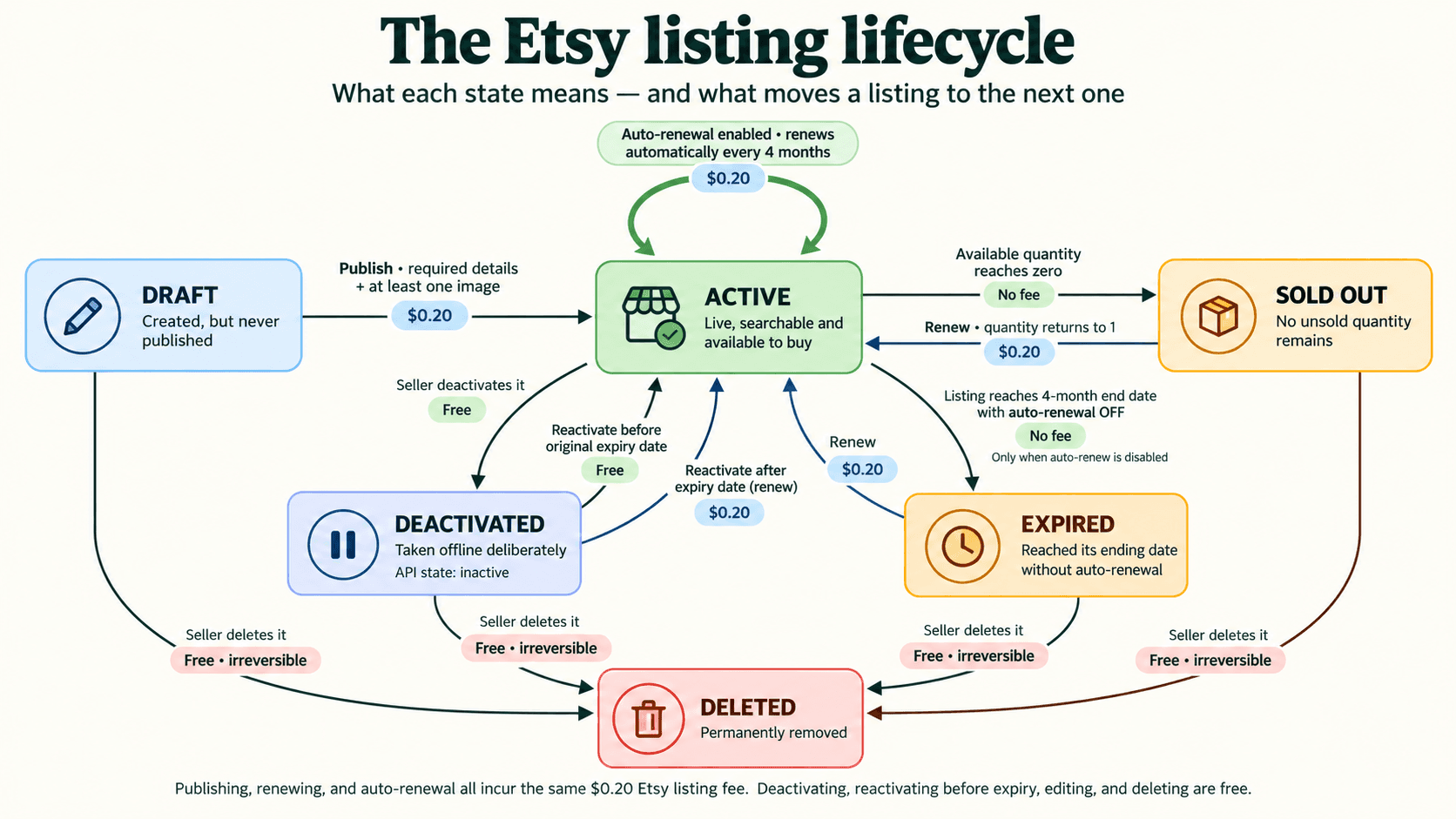
Etsy Listing States Explained: From Draft to Deleted
Ever wondered what each Etsy listing state means—or how a listing moves from one to another? Here is the quick version.
Read article
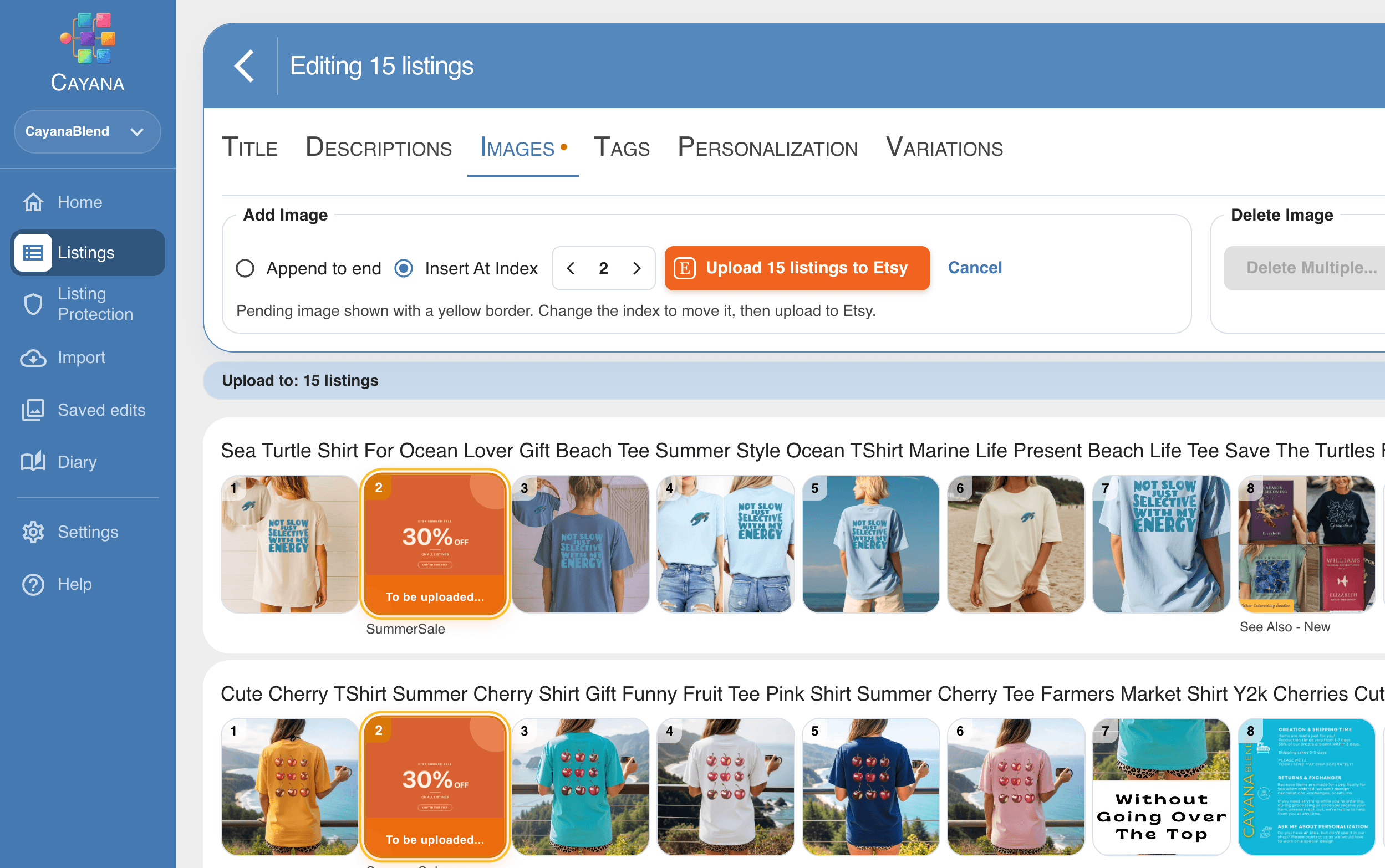
How to Bulk Edit Etsy Listings Safely: A Practical Guide
A calm, repeatable way to update many Etsy listings while protecting the details that make each one work.
Read article

Why I Started Cayana Studios
I built Cayana after experiencing the repetitive work of running an Etsy shop—and believing that listing management could feel clearer, calmer and safer.
Read article