
How to Bulk Edit Etsy Listing Images Without the Busywork
One promotional image. A whole collection of listings. Give your Etsy shop a seasonal refresh with Cayana’s clean, visual bulk editor.
In this article
To bulk edit Etsy listing images, select the listings that need the same image, add the image once in a bulk editor, choose its position, review the affected listings and upload the batch to Etsy. Cayana lets smaller shops perform this workflow visually without opening every listing separately.
You have designed your Black Friday graphic. It looks great, the offer is clear, and you are ready to add it to your Etsy listings. Now comes the repetitive part: opening each listing, uploading the same image, putting it in the right place, and doing it all again.
The creative work is finished. Why should the admin take over?
Cayana brings those repeated edits into one visual workspace. Choose the listings you want to update, add your image once, review where it will appear, and send the batch to Etsy. It is a simpler way to give a collection a consistent look—without turning your afternoon into a procession of browser tabs.
A workspace that feels good to use
Bulk editing should not feel like working through a spreadsheet with the pictures missing. In Cayana, your products stay visible while you work.
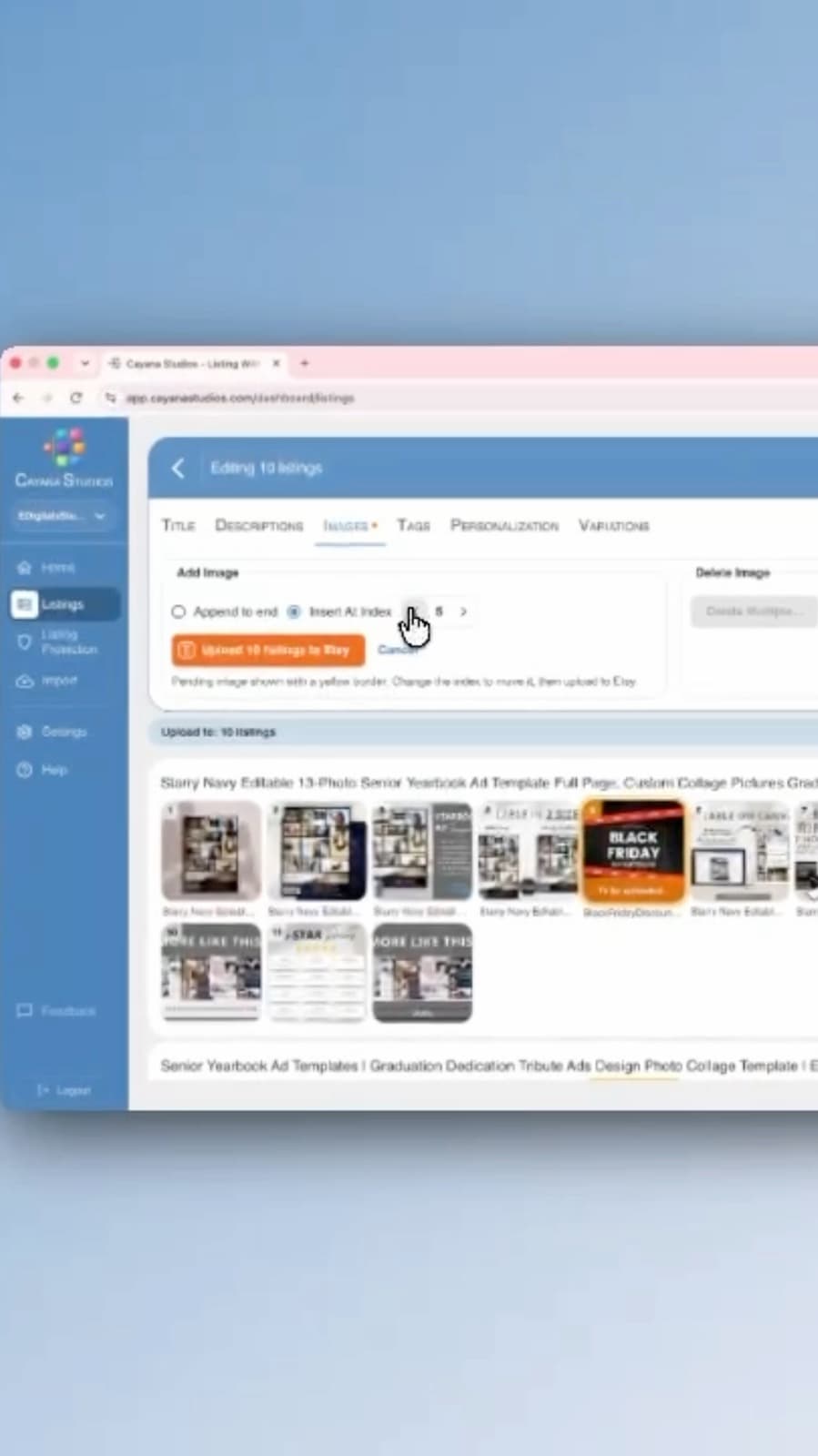
The interface combines a soft blue navigation area, clean white panels, and clear image thumbnails. Tabs separate images from titles, descriptions, tags, and other listing details, so you can concentrate on the job in front of you. There is room to see what you are changing, rather than hunting through a crowded screen of controls.
That attractive layout serves a practical purpose. Seeing your product photos together makes it easier to recognise the right listings and check how a shared image fits alongside their individual photographs. The experience is visual, direct, and easy to follow.
From one image to a coordinated collection
Our image-editing demonstration uses a Black Friday promotional graphic across a group of ten listings. Here is the workflow.
1. Choose the listings that belong together
Start in Listings and find the products you want to update. Use search and the section filter to narrow the group, then select your listings and open the bulk editor.
You stay in control of the selection. A promotion for one collection does not have to appear across the whole shop.
2. Add your promotional image once
Open the Images tab and choose Add Media To All…. Select the image you want to share across the group—for example, a seasonal offer, a gift-packaging photograph, or a care guide that applies to those products.
Instead of repeating the upload setup for every listing, you prepare the shared addition in one place.
3. Put it where it makes sense
You can append the image to the end or choose an insertion position. The pending image is highlighted in the preview, making it easy to spot among the existing photographs before you upload.
For a seasonal promotion, you might keep the product photograph first and place the offer further along the image sequence. You can check the proposed position visually rather than trying to remember which picture occupies each slot.
4. Upload the batch to Etsy
When you are happy with the preview, start the upload. Cayana shows progress as it processes the selected listings and reports the result, including any listings that could not be updated.
Preparing the image is not the same as publishing it: you choose when to upload. Once an upload succeeds, the image is saved to that listing on Etsy. Larger batches can take longer, so let the process finish and check the result before starting another upload.
Useful long after Black Friday
Seasonal campaigns are just one reason to use bulk image editing. The same workflow can help you add:
- A sizing guide to a matching range of clothing.
- Care instructions to products made from the same material.
- A packaging image to listings that offer the same presentation.
- Ordering instructions to a collection of personalised products.
The key is to choose a group for which the shared image is genuinely useful. You keep each listing’s individual product photographs while making the repeated information more consistent.
Adding a promotional graphic does not itself change your prices or create an Etsy sale. Set up the offer separately and make sure the image accurately describes it. When the campaign ends, remember to remove or update time-sensitive artwork too.
Less repetition. More time for your shop.
Cayana’s appeal is not simply that it lets you work on several listings at once. It makes the work easier to see: your selected products, their images, the proposed addition, and the upload progress are all part of a clear workflow.
An attractive interface is worth more when it helps you feel comfortable making changes. That is the idea behind Cayana’s bulk editor: fewer repeated steps, a clearer view of your products, and more time for the creative work that brought you to Etsy in the first place.
Ready to refresh a collection? Open Cayana, choose a small group of listings, and try your first shared image update. For broader planning advice, read our guide to bulk editing Etsy listings.
Related articles
How to Bulk Edit Etsy Listings Safely: A Practical Guide
A calm, repeatable way to update many Etsy listings while protecting the details that make each one work.
Read article